Android SMB Client Integration Guide
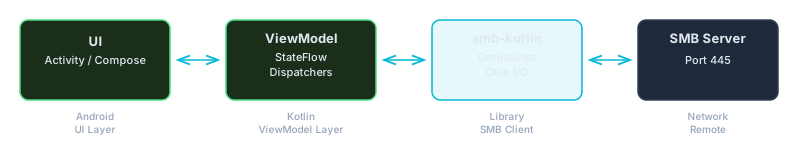
This guide covers everything you need to integrate smb-kotlin into an Android
app. smb-kotlin is a pure Kotlin Android SMB library with zero native
dependencies — no JNI, no platform-specific binaries, no special permissions
beyond INTERNET. It gives your Android app full access to SMB2
and SMB3 file shares using idiomatic Kotlin coroutines, making it the simplest
way to build an Android Samba client or kotlin Android file sharing feature.
Requirements
| Requirement | Minimum |
|---|---|
| Android API level | 26+ (Android 8.0 Oreo) |
| Kotlin | 2.0+ |
| Permissions | INTERNET only |
| Native dependencies | None |
API 26 is required for the java.security and
javax.crypto APIs used by the NTLM authentication and SMB3
encryption layers. No NDK code, no .so files, no JNI — smb-kotlin
is pure Kotlin from the transport layer up through crypto. The only permission
your app needs is INTERNET, which Android grants automatically
when declared in the manifest.
Gradle Setup
Add smb-kotlin to your module-level app/build.gradle.kts. Make
sure your minSdk is set to 26 or higher.
android {
    defaultConfig {
        minSdk = 26
        // ...
    }
}

dependencies {
    implementation("com.ctreesoft:smb-kotlin:1.3.0")
}
smb-kotlin is published to Maven Central, so no additional repository
configuration is needed if your project already includes
mavenCentral() in its repositories block.
License Setup for Android
smb-kotlin requires a valid license file at runtime. On Android, the recommended approach is to place the license file in your app's assets directory and load it at startup.
1. Place the License File
Copy your smb.lic file to app/src/main/assets/smb.lic
in your Android project. The assets directory is bundled into your APK and
accessible at runtime via the AssetManager.
2. Load the License
Use context.assets.open() to read the license file, then pass it
to SmbConfig when building your client configuration.
import com.ctreesoft.smb.SmbConfig
import com.ctreesoft.smb.license.License

// Load from Android assets (in an Activity, Fragment, or Application class)
val license = context.assets.open("smb.lic").use { stream ->
    License.fromStream(stream)
}

val config = SmbConfig.builder()
    .license(license)
    .build()
A good pattern is to load the license once in your
Application.onCreate() or in a dependency injection module, then
share the SmbConfig instance across your app.
ViewModel Integration
The recommended way to use smb-kotlin in an Android app is through a
ViewModel. This ensures the SMB connection survives configuration
changes and is properly cleaned up when the user navigates away. The following
example shows a complete SmbBrowserViewModel that connects to a
share, browses directories, and downloads files — all using Kotlin coroutines
and StateFlow for reactive UI updates.
import androidx.lifecycle.ViewModel
import androidx.lifecycle.viewModelScope
import com.ctreesoft.smb.SmbClient
import com.ctreesoft.smb.SmbConfig
import com.ctreesoft.smb.api.SmbShare
import com.ctreesoft.smb.api.SmbFileEntry
import com.ctreesoft.smb.license.License
import kotlinx.coroutines.Dispatchers
import kotlinx.coroutines.flow.MutableStateFlow
import kotlinx.coroutines.flow.StateFlow
import kotlinx.coroutines.launch
import java.io.File

class SmbBrowserViewModel(
    private val config: SmbConfig
) : ViewModel() {

    private val _files = MutableStateFlow<List<SmbFileEntry>>(emptyList())
    val files: StateFlow<List<SmbFileEntry>> = _files

    private val _error = MutableStateFlow<String?>(null)
    val error: StateFlow<String?> = _error

    private var client: SmbClient? = null
    private var share: SmbShare? = null

    fun connect(server: String, shareName: String, username: String, password: String) {
        viewModelScope.launch(Dispatchers.IO) {
            try {
                _error.value = null
                val smbClient = SmbClient(config)
                val session = smbClient.connect(server, username, password)
                val smbShare = session.connectShare(shareName)
                client = smbClient
                share = smbShare
                browse("")
            } catch (e: Exception) {
                _error.value = e.message ?: "Connection failed"
            }
        }
    }

    fun browse(path: String) {
        viewModelScope.launch(Dispatchers.IO) {
            try {
                _error.value = null
                val entries = share?.listDirectory(path) ?: emptyList()
                _files.value = entries
            } catch (e: Exception) {
                _error.value = e.message ?: "Failed to list directory"
            }
        }
    }

    fun downloadFile(remotePath: String, localFile: File) {
        viewModelScope.launch(Dispatchers.IO) {
            try {
                _error.value = null
                share?.readFile(remotePath) { source ->
                    localFile.outputStream().use { output ->
                        val buffer = ByteArray(8192)
                        var bytesRead: Int
                        while (source.read(buffer).also { bytesRead = it } != -1) {
                            output.write(buffer, 0, bytesRead)
                        }
                    }
                }
            } catch (e: Exception) {
                _error.value = e.message ?: "Download failed"
            }
        }
    }

    override fun onCleared() {
        super.onCleared()
        share?.close()
        client?.close()
    }
}
Collect the files and error state flows in your
composable or fragment to reactively update the UI. All SMB operations run on
Dispatchers.IO so they never block the main thread.
Uploading Files from Content URI
Android's Storage Access Framework (SAF) returns content URIs from the document
picker rather than file paths. To upload a file selected by the user, use
ContentResolver to open an InputStream from the URI
and stream it to the SMB share. This pattern works with any android SMB client
app that needs to handle user-selected documents.
import android.content.ContentResolver
import android.net.Uri

fun uploadFromUri(
    contentResolver: ContentResolver,
    uri: Uri,
    share: SmbShare,
    remotePath: String
) {
    share.writeFile(remotePath) { sink ->
        contentResolver.openInputStream(uri)!!.use { input ->
            val buffer = ByteArray(8192)
            var bytesRead: Int
            while (input.read(buffer).also { bytesRead = it } != -1) {
                sink.write(buffer, 0, bytesRead)
            }
        }
    }
}
Call this from a coroutine on Dispatchers.IO. The
writeFile callback gives you a sink to stream data into — there is
no need to buffer the entire file in memory, which is critical for large file
uploads on Android devices with limited RAM.
ProGuard / R8
smb-kotlin's public API classes are designed to work with R8 and ProGuard out of the box. The library includes its own consumer ProGuard rules, so in most cases no additional configuration is needed.
If you encounter issues with obfuscation — for example, reflection-based errors
at runtime — add the following rules to your
proguard-rules.pro file:
-keep class com.ctreesoft.smb.api.** { *; }
-keep class com.ctreesoft.smb.error.** { *; }
These rules preserve the public API and error classes used by your application code. Internal implementation classes can still be shrunk and obfuscated normally.
Logging on Android
smb-kotlin logs through SLF4J. On Android, the easiest way to see these logs
in Logcat is to bridge SLF4J to Timber using the
slf4j-timber adapter. Add the dependency to your
build.gradle.kts:
dependencies {
    implementation("com.ctreesoft:smb-kotlin:1.3.0")
    implementation("com.arcao:slf4j-timber:3.1")
}
Then plant a Timber tree in your Application.onCreate():
import timber.log.Timber

class MyApp : Application() {
    override fun onCreate() {
        super.onCreate()
        if (BuildConfig.DEBUG) {
            Timber.plant(Timber.DebugTree())
        }
    }
}
With this setup, all smb-kotlin log output appears in Logcat under the appropriate log tags, filtered by Timber's tag and level controls. This makes it straightforward to debug SMB connection issues, authentication failures, and protocol-level details during development.
Thread Safety
SmbClient and SmbShare instances are fully
thread-safe. Multiple coroutines can perform operations on the same share
concurrently without external synchronization. This means you can safely share
a single SmbShare instance across your app — for example, one
coroutine browsing a directory while another downloads a file in the background.
The library handles all internal locking and connection multiplexing transparently, so you can focus on your app logic rather than SMB protocol details. This thread-safe design is especially useful in Android apps where multiple ViewModels or background workers may need to access the same SMB file share simultaneously.